

Food and beverage companies are expected to move fast. The ability to move quickly is required for responding to rising ingredient costs, shifting consumer preferences, shifting regulatory requirements, or even simple seasonal changes. Case in point: the enduring popularity of Pumpkin Spice. To stay agile, teams need a reliable way to evaluate product changes without slowing down innovation and implement them without sacrificing trust or safety. One critical process that supports this is recipe comparison: the ability to assess multiple product versions across nutrition, labeling, cost, and allergen data, all in one place.
For manufacturers and restaurant brands alike, making informed decisions during reformulation or menu development is not just a matter of speed. It also impacts compliance, consumer trust, and cross-department alignment. A structured, data-driven approach to comparing recipes can streamline everything from R&D and marketing approvals to final labeling and launch.
It's Not Just You - Food Reformulation Has Grown More Complex
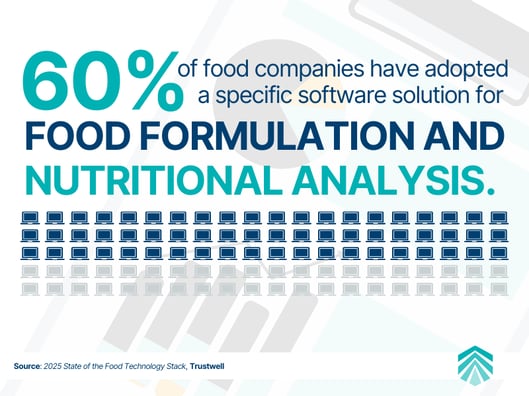 Changing a single ingredient in a recipe used to be a relatively straightforward decision. Today, the consequences of that change reach much further across a business. Reformulation now requires close attention to:
- Nutrition profile adjustments, which may impact eligibility for nutrient content claims
- Allergen visibility, particularly for items labeled gluten-free, dairy-free, or vegan
- Ingredient cost variability driven by inflation, climate impact, or sourcing disruptions
- Regulatory rules that differ by country and evolve frequently
- Operational feasibility, such as supplier availability and production timelines
Read More: The Great Reformulation: How the Food Industry is Adapting to New Regulations
Moreover, many brands have to contend with expectations from their retail partners, who may require added transparency around sourcing, sustainability, and labeling consistency. All of these factors increase the need for structured product evaluation before finalizing any change.
What Happens When Product Recipe Comparisons Are Manual?
Without a streamlined method for comparing recipes, many teams rely on spreadsheets, emails, and manual calculations. In fact, our recent State of the Food Technology Stack Survey found that nearly 40% of organizations still rely on manual solutions to manage some or all of their processes, which can create risk at several levels.
Digital Download: 2025 State of the Food Technology Stack Survey Report
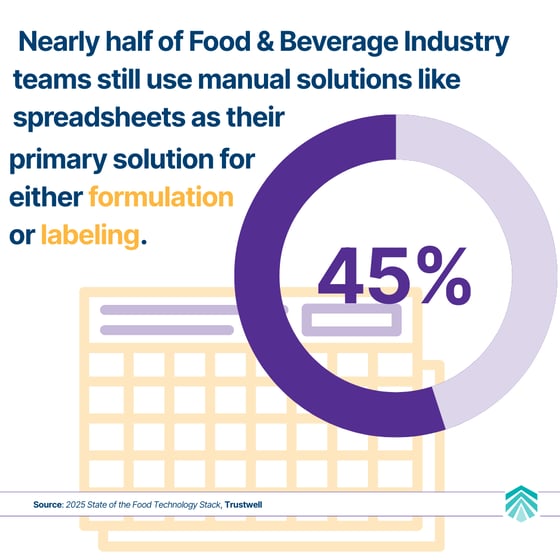 First, manual comparisons can lead to errors in nutrition calculations or missed allergen flags, resulting in incorrect labels. If a “gluten-free” menu item inadvertently includes an ingredient containing gluten, the risk to both the consumer and the brand is significant.
Second, the entire decision-making slows down. Regulatory, R&D, and marketing teams may work in different systems, reviewing slightly different versions of a recipe. This fragmentation can create unnecessary rounds of revisions, delaying launch timelines and increasing costs.
Read More: A Recipe for Success: Better Version Control for On-Time Product Launches
Finally, incomplete or limited visibility into data can lead to overstating product claims or omitting them completely. A reformulated item may qualify as a “good source of fiber” or “low in sodium,” but without an automated tool to flag these opportunities, teams might miss them. These delays and risks are avoidable when recipe comparisons are done with a centralized system that brings together all key data points.
Who Benefits From Side-by-Side Recipe Comparisons?
A recipe comparison tool is valuable across multiple functions within a food business.
- Research & Development teams use it to evaluate formulation changes and understand the impact on nutrition, allergens, and functional ingredients
- Regulatory teams rely on side-by-side visibility to confirm compliance with U.S., Canadian, or international labeling requirements
- Quality Assurance and Operations benefit from early insight into ingredient-level changes, helping avoid surprises during production
- Procurement can use comparison data to weigh cost differences between recipe options without requiring another formulation cycle
- Marketing teams reference comparisons to support or update product claims in messaging and packaging
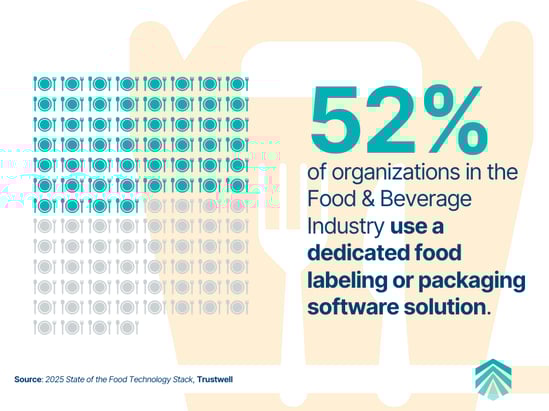 By centralizing the comparison process, each department works from the same source of truth and can act with clarity and speed. Companies across the food industry can (and do!) use side-by-side recipe comparisons to solve real challenges in formulation, labeling, and collaboration.
Let's look at two examples — a packaged food brand responding to ingredient cost changes and a restaurant chain refreshing its seasonal menu — to explore how different types of businesses can apply this process using the Food Comparison Report in Genesis Foods to improve decision-making and reduce risk.
Example: A CPG Brand Uses the Food Comparison Report for Smarter Reformulation
Let's imagine a mid-sized consumer packaged goods company called HealthyRoots Foods. They specialize in gluten-free frozen meals sold across U.S. retail channels. Faced with rising almond flour and tomato paste costs, HealthyRoots needs to reformulate its top-selling lasagna. At the same time, the product team wants to reduce the sodium content to support an upcoming “better-for-you” marketing campaign.
The team creates two reformulated versions of the lasagna recipe, each with alternate ingredients that could lower cost or support a nutrient claim. Using Genesis Foods, HealthyRoots runs a Food Comparison Report to:
- Load and select three versions of the lasagna recipe: Original, Reformulation A, and Reformulation B
- Generate side-by-side nutritional and ingredient comparison, showing differences in calories, sodium, protein, allergens, and ingredient costs
- Preview label information that follows FDA rounding rules for each recipe draft
- Identify which version has a lower % Daily Value of sodium
- Export the report for R&D and Marketing Teams to assess formulation impact, cost-saving opportunities, taste tests, nutrient claim viability, labeling accuracy and regulatory readiness
Reformulation B emerges as the strongest option with a more affordable tomato concentrate, reducing sodium by 28%, and allowing the team to retain a “good source of fiber” claim. The team exports the comparison report to share it with Marketing, Regulatory, and Product Management for final approval.
All told, the HealthyRoots Foods team is able to reduce the time to a final decision by half and eliminated the need for additional outside review. With Genesis Foods, they're able to generate an updated label that's compliant with both U.S. and Canadian authorities, all in one place.
Example: A Restaurant Chain Makes Seasonal Menu Updates with Genesis Foods
Now, let's look at the potential for the Food Comparison Report in Genesis Foods to help restaurant teams innovate quickly without cutting compliance corners. In this example, Harvest Kitchen is a fast-casual restaurant brand with 25 locations across the United States. As the seasons change, the culinary team rotates several menu items to meet sustainability goals with seasonal ingredients and changing consumer preferences.
Read More: 5 Menu Compliance Errors That Can Cost Your Restaurant More Than a Bad Review
As they prepare the winter menu, Harvest Kitchen's team decides to refresh the “Autumn Power Bowl” by lowering the calorie count to appeal to January health-conscious consumers and replacing ingredients that will soon be out of season. They create two new versions, one that substitutes farro for quinoa and one that features a different mix of root vegetables.
They have three key objectives:
- Identify nutritional differences in all three varients, especially in calories, fiber, and sodium
- Ensure accurate allergen tracking with ingredient swaps (e.g., quinoa vs. farro)
- Enable the marketing team to make evidence-based menu claim decisions
Using the Food Comparison Report, the Harvest Kitchen's R&D chef loads the three versions of the Autumn Power Bowl into Genesis and runs a side-by-side report displaying calorie, fat, protein, fiber, and sodium content as well as ingredient changes that show that the farro has introduced a potential allergen — the gluten introduced by swapping quinoa for farro.
Digital Download: Menu Labeling 101: What You Need to Know
The chef identifies that Harvest Bowl Version B reduces total calories by 120 and maintains 20% DV fiber and notices that Version C exceeds 5% DV sodium. She then shares the report directly with Marketing and Operations for approval and labeling.
The team assesses the report and together they choose Version B, which meets marketing criteria for a "Good Source of Fiber" and offers a lower- calorie seasonal option. The food safety team can use the resulting report to determine that they need to remove the “gluten-free” label from the new version to prevent regulatory mislabeling, and the marketing team will use the side-by-side data to update menu boards, digital menus, and promotional materials.
By avoiding manual calculations and data entry, and by reducing cross-departmental review, the team accelerates the time to launch while remaining confident in their ability to comply with labeling regulations and make evidence-based claims.
Recipe Comparison Tools Build Agility Into the Product Development Process
Product development in food companies often follows a pattern: test a change, review the results, and then decide whether to launch. What varies between companies is how efficient and consistent that process is. A structured comparison report introduces repeatability to the process. Every recipe version is evaluated with the same standards, the same regulatory logic, and the same format. Teams learn faster from each iteration. Over time, this not only accelerates product development but also improves decision quality.
A company that uses structured comparison data to select between formulations, validate claims, and manage allergen risks is better positioned to adapt and grow. As labeling regulations evolve and ingredient markets shift, that kind of operational clarity becomes a competitive advantage, especially in organizations with seasonal menu items and product offerings.
Read More: Genesis Food Upgrades Your Workday with Tools to Work Smarter, Not Harder
Faster, more iterative development cycles will require the food industry to adopt new technology and rethink their processes. When we think of agile product development, tech companies tend to spring to mind, but the approach isn't exclusive to social media networks or enterprise SaaS providers. For food brands, agility means being able to test, compare, and finalize formulations quickly without sacrificing compliance or safety while giving teams the visibility they need to collaborate effectively.
Watch On-Demand: Streamline Operations with Food Specification Management
Side-by-side comparison reports provide a structure for iteration, because they allow for an apples-to-apples (or farro-to-quinoa!) comparison. Instead of relying on isolated documents or spreadsheets, teams can bring forward accurate, consistent data each time they test a new version. This speeds up approvals, limits the need for external testing at early stages, and creates a repeatable process for product innovation.
To learn more about how your team can use tools like the Food Comparison Report within Genesis Foods, explore Trustwell's food formulation, labeling, and compliance tools or try a hands on demo of the industry's gold standard in recipe development. Our platform is built to support faster, smarter product development across every part of the supply chain from the very first ingredient to the final version of your label.
Other posts you might be interested in
View All Posts
Food Industry
26 min read
| January 27, 2026
Safer Food, Stronger Connections: Trustwell's 2025 in Review
Read More
Product Formulation
26 min read
| January 12, 2026
The Best of Genesis Foods in 2025: 6 Feature Updates That Delivered Real Impact
Read More.jpeg?length=360&name=AdobeStock_278955183%20(1).jpeg)
Trustwell News
7 min read
| December 9, 2025